Histograms #
The Histogram Panel analyzes the distribution of classes within a group. It allows analysts to visualize class composition and perform logical set operations (Union, Intersection, Difference) to refine the graph structure.
The Histogram Panel #
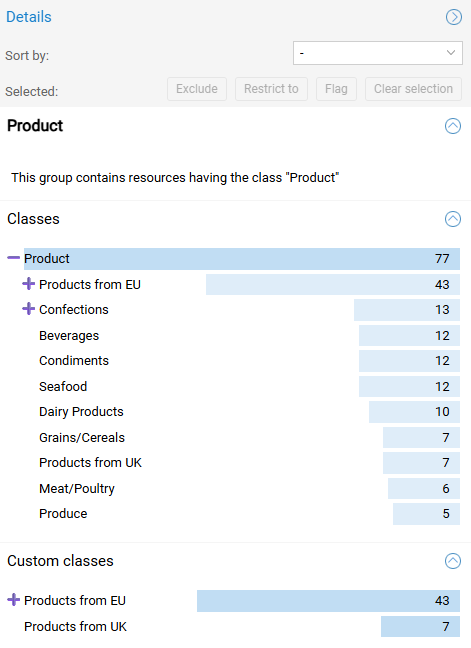
Selecting a group opens the Histogram Panel in the sidebar.
- Scope: The panel displays counts for all classes (including Custom Classes) present within the selected group.
- Hierarchy: Use the
(+)icons to expand subclasses (e.g.,Confections) to reveal granular distributions. - Sorting: Use the dropdown to order bars by Name (Alphabetical) or Quantity (Instance Count).
Selection & Controls #
Clicking a bar selects the class. Active selections enable the control buttons at the top of the panel: Exclude, Restrict to, and Flag.
Filtering (Set Operations) #
Histograms function as a visual query builder. Use the buttons to apply boolean logic to the group.
| Logic | Action | Description |
|---|---|---|
| Simple Filter | Select One → Restrict to | Updates the group to contain only resources of the selected type. |
| Union (OR) | Select Multiple → Restrict to | Retains resources that match ANY of the selected classes (e.g., Beverages OR Confections). |
| Difference (NOT) | Select Any → Exclude | Removes resources matching the selection from the group. |
| Intersection (AND) | Sequential Operation | 1. Restrict to Class A.2. Select Class B in the updated list.3. Restrict to Class B.Result: Items that are BOTH A and B. |
Logical Captions #
As filters are applied, the Group Caption updates to reflect the mathematical definition of the group.
- Example:
(Beverages | Confections) \ Products from EU - Meaning: The group contains (Beverages OR Confections) MINUS (Products from EU).
Flagging Resources #
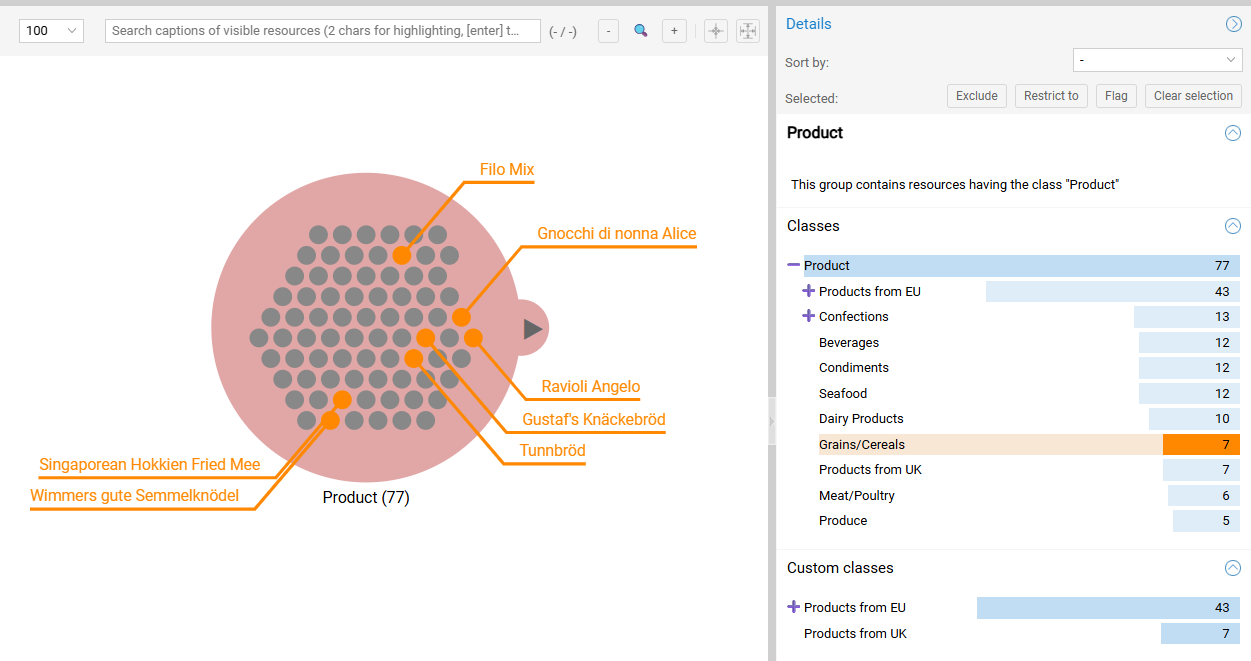
Flagging highlights specific subsets of data for visual inspection without removing them from the graph structure.
- Select one or more bars in the histogram.
- Click the Flag button.
- Result: Matching resources are highlighted in Orange, and a persistent label appears on the node.
Visibility Threshold
Flagging is only visible when the group is in Instance View (Count < Threshold). See Threshold Logic.