Resource Details #
Deep investigation requires inspecting, tracking, and isolating individual resources. This module covers the Resource Dossier, entry points for individual analysis, and the Flagging System.
Single Resource Entry Points #
Analysts can extract specific resources from aggregates to analyze their unique relationships.
Prerequisite
These actions require the group to be in Instance View (individual dots visible).
Seeding with an Resource #
Isolate a specific resource to start a new exploration path.
- Locate the resource via Search or the Resource Table.
- Right-click and select Start exploration with resource.
- Result: The canvas clears and places the single resource as the root node.
Extracting from a Group #
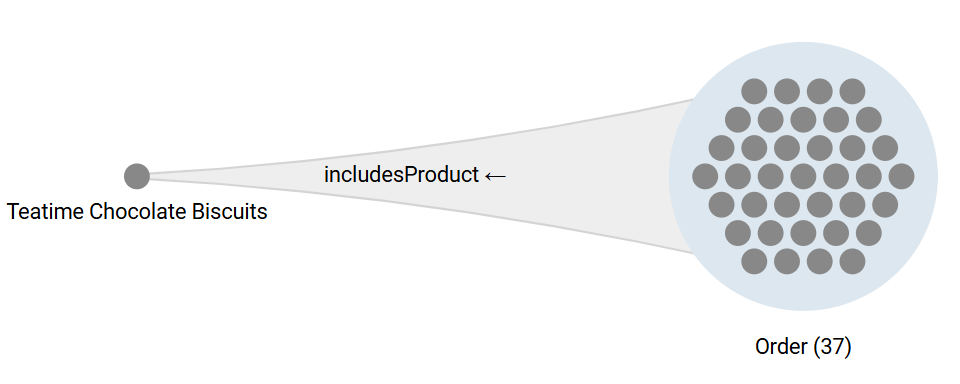
Trace the specific connections of one individual within a larger group.
- Action: Right-click a dot (in Instance View) and select Explore connections of the resource.
- Result: A distinct relationship line is drawn from the individual to the target group, separating its path from the aggregate flow.

The Resource Dossier #
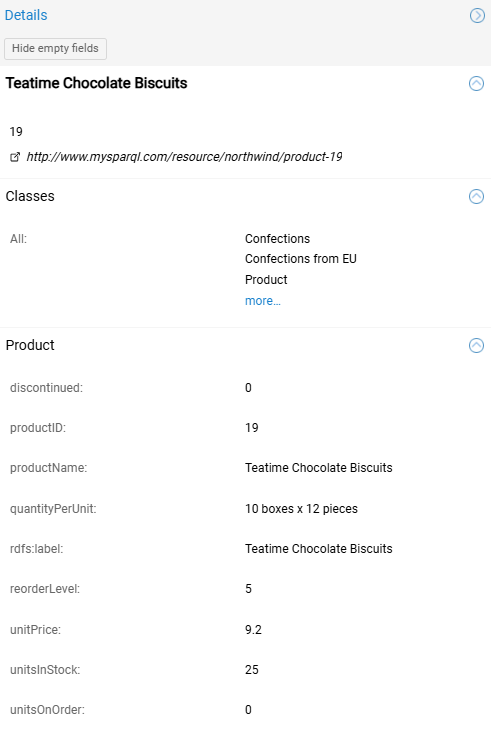
Selecting any resource opens the Details sidebar (Dossier). This panel profiles the resource identity and properties.
Anatomy #
- Header: Displays the Caption and Description (configured in the left sidebar).
- Identity: The unique (IRI).
- Classes: List of all classes assigned to the resource.
- Data Properties: Attributes organized by their defining class.
Shared Properties
If a property is defined by multiple classes (e.g.,
rdfs:labelused by bothClothingandSeasonalCollection), SemSpect groups them into a shared section (e.g., Clothing & SeasonalCollection) to avoid duplication.
Controls #
- Hide empty fields: Toggles visibility of properties that have no value for this specific resource.
- Copy Data: Right-click any row to copy the data property or data property assertion.
Flagging & Annotation #
Flags highlight resources for tracking.
Permanent Flags (Session Scope) #
Persistent markers for curation.
- Action: Right-click an resource → Flag resource → Select Color.
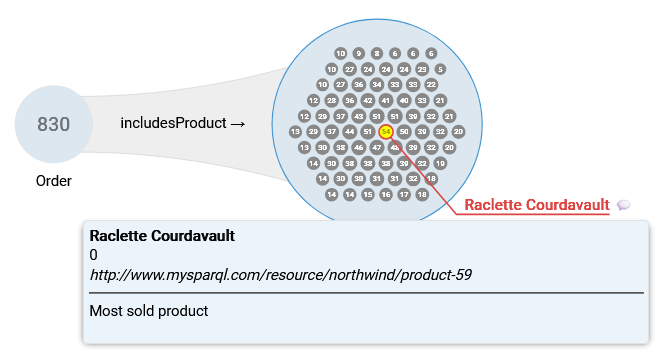
- Notes: Click Add note to attach a text comment. The note appears in the tooltip on hover.
Temporary Flags (View Scope) #
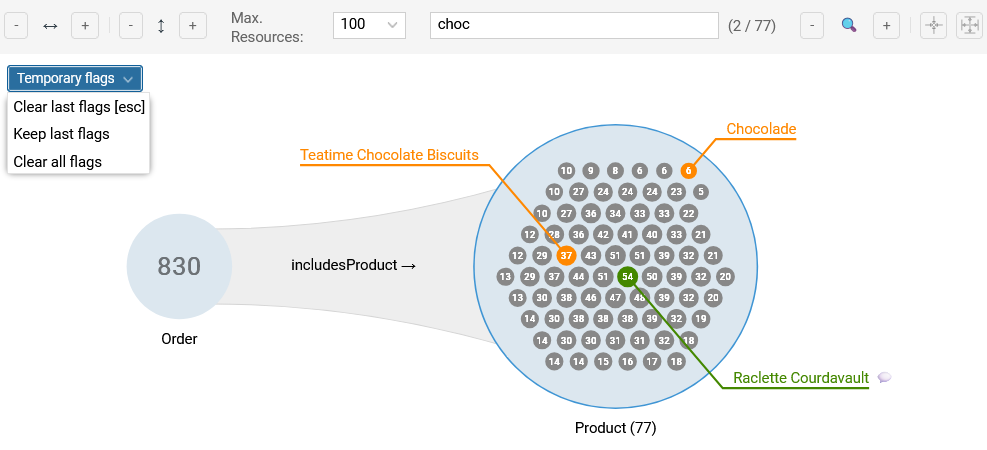
Transient highlights generated by system actions (e.g., histogram selection or search).
- Behavior: Temporary flags (Orange) disappear when the graph topology changes (e.g., expanding/filtering).
- Locking: To preserve a selection, use the Temporary flags menu in the top-left toolbar:
- Keep last flags: Converts the current transient selection into a “locked” state that survives graph updates.
- Clear last flags: Removes the current highlight.
Path Highlighting (Branching) #
Visualize dependencies upstream and downstream.
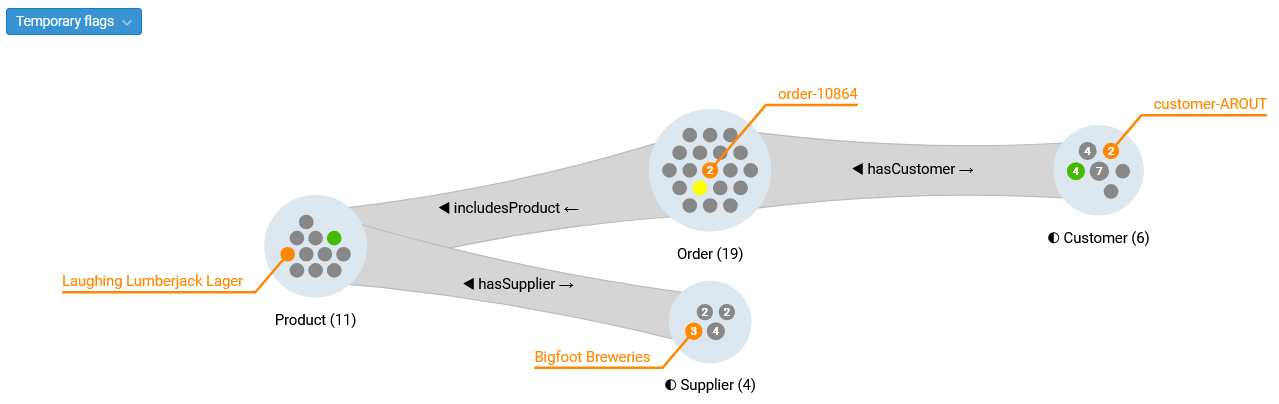
- Hover over an resource in Instance View.
- Visuals:
- Target: Yellow (Red on click).
- Path: Connected predecessors and successors turn Green (Blue on click).
- Action: Right-click and select Flag all connected resources… to apply a Temporary Flag to the entire branch.
Line of Sight
Path highlighting is blocked by Aggregated Groups (Count > Threshold). The system cannot trace dependencies through a collapsed cluster.
Visualizing Influence (Predecessors) #
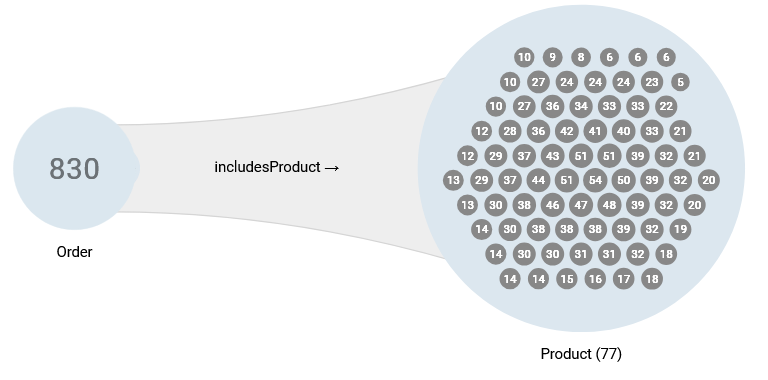
In Instance View, SemSpect visually encodes the “centrality” of resources based on their incoming connections.
The Predecessor Metric #
Predecessors = The number of links from the previous group in the current path.
Visual Encodings #
- Badge: The number inside the dot displays the exact count (e.g., “54” means this Product is referenced in 54 Orders in the previous group).
- Size: Larger dots indicate higher connectivity.
- Position: High-influence resources gravitate toward the center.