Search & Navigation #
The sidebar functions as the navigation center, managing the data taxonomy, search functionality, and global visualization settings.
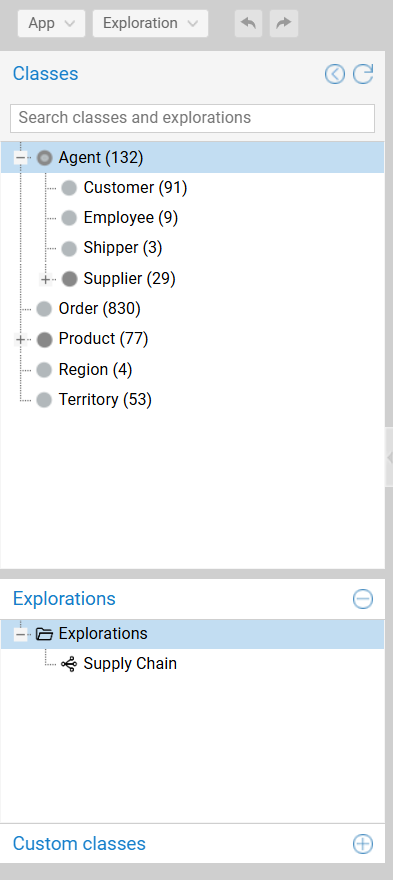
The Class Tree #
The tree displays the hierarchical taxonomy of the dataset, alongside Saved Explorations and Custom Classes.
- Hierarchy: Parent-child relationships (e.g.,
Agent→Customer) reflect the underlying schema. - Counts: The number in parentheses (e.g.,
(132)) indicates the total instance count for that class. - Search: The input field filters the tree to locate specific classes or Saved Explorations.
Seeding an Exploration #
The tree is the primary tool to populate the canvas:
- Drag & Drop (Seed): Drag a class to an empty area to create a new group.
- Drag & Drop (Intersect): Drag a class onto an existing group to apply an intersection filter (e.g., dragging
German SuppliersontoVIP Suppliersshows only items that match both). - Double-Click: Instantly clears the canvas and seeds a new exploration with the selected class or saved exploration.
Node Captions & Descriptions #
By default, SemSpect selects a standard property (e.g., rdfs:label) to represent resources. You can override this to control what text appears on nodes in the Canvas and Resource Dossier.
Configuration #
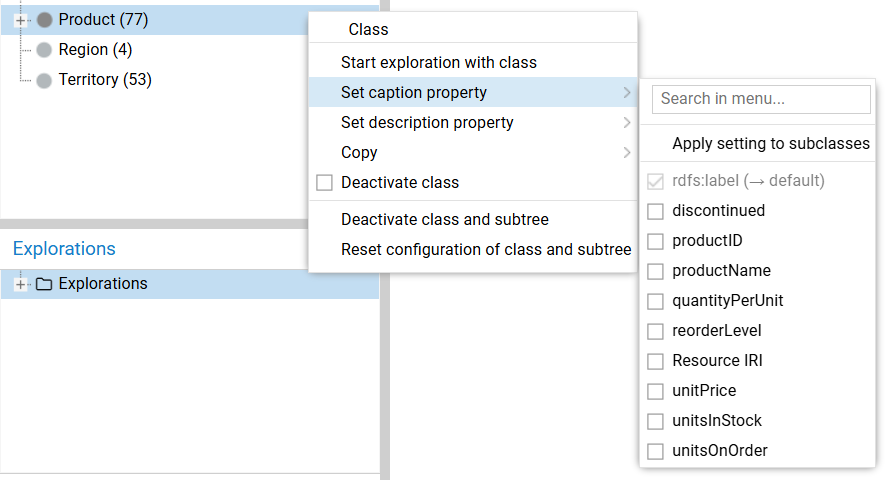
Right-click a class in the tree to access the configuration menu:
- Set caption property: Determines the primary bold text on the node.
- Set description property: Determines the secondary subtitle text.
Inheritance (Subtrees) #
Settings flow down the hierarchy. Checking Apply setting to subclasses forces all children of the selected class to use the same property. Select Reset configuration… to revert the subtree to system defaults.
Class Visibility (Deactivation) #
“Deactivating” a class hides it from the Expansion Menu on the canvas, streamlining the exploration workflow. This is useful for hiding abstract super-classes (e.g., Entity, Thing) that add noise to the exploration path.
- Action: Right-click a class and select Deactivate class.
- Result: The item turns Light Gray in the sidebar. Expansions from other nodes will skip this class and offer its specific subclasses instead.
Note: You can toggle the visibility of deactivated items in the tree via the global Settings menu.
Global Configuration Reset #
To return the sidebar configuration to a clean state, click the Circular Arrow icon in the sidebar header. This actions restores all deactivated classes and reverts caption settings to defaults.