Application and Dataset Settings #
Application Settings #
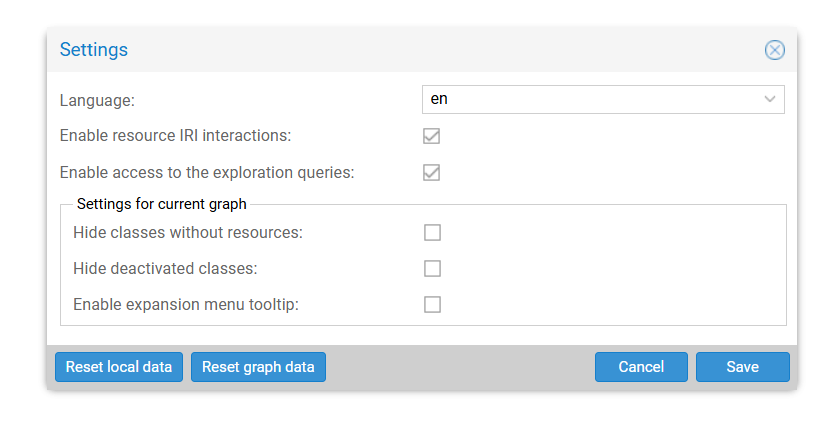
Access global configuration via the top-left dropdown menu.
General Configuration #
- Technical details: Toggles visibility of low-level metadata, including IRIs and SPARQL queries.
- Tree visibility: Hides empty or deactivated classes in the class tree.
Troubleshoot and Reset #
- Reset local data: Clears browser-side preferences (e.g., columns visibility, width, and position).
- Reset graph data: Performs a “Factory Reset” of the analysis for the current dataset.
Destructive Action
Reset graph data permanently deletes all user-defined classes and saved explorations associated with the current database. This cannot be undone.
Error Logging #
Use Export error log to generate a JSON diagnostic file for support requests.
Database Settings #
Database Selection #
For environments with multiple datasets:
- Location: Bottom-right footer.
- Usage: Click to change the active dataset.

Database Summary #
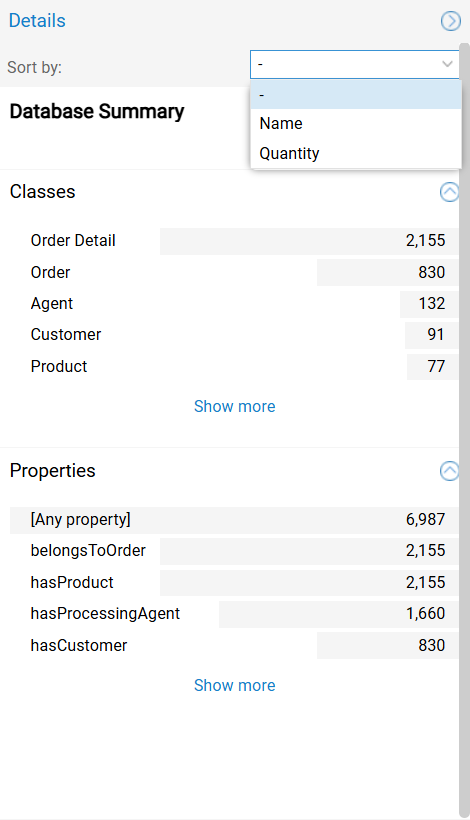
When no group or connection is selected, the right pane displays the database summary.
- Action: Click the empty canvas background to deselect items.
- Outcome: The database summary is shown in the right
Detailspane.- Classes: Lists all available classes and their cardinality.
- Object Properties: Lists all object properties with their object property assertions count.
Search and View Controls #
Use the controls at the top of the pane to navigate the summary:
- Search: Enter text to filter the summary lists. Use the scope dropdown to restrict the search to
Captions,IRIs, orAll. - View Settings (cogwheel):
- Views: Switch between
Tree viewandList view. - Sorting: Order lists using
Sort by name(alphabetical) orSort by count(cardinality) to identify the largest entities. - Hide IRIs: Toggles the display of the underlying identifiers.
- Views: Switch between