All Explorations Start from the Class Tree #
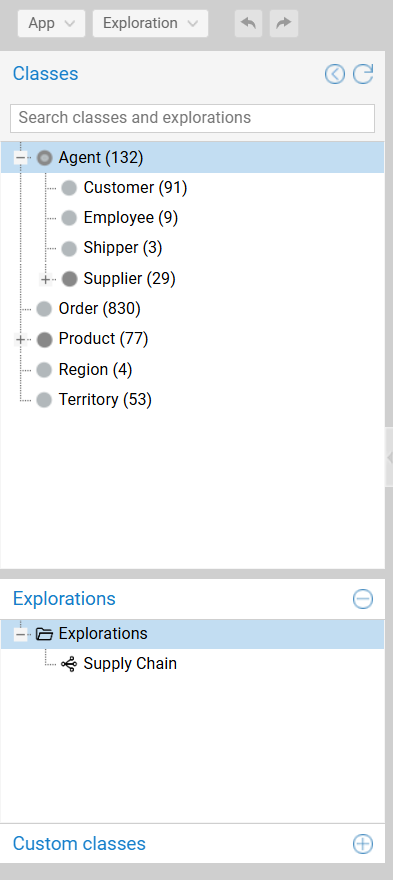
The left pane is the starting point of any exploration, whether you want to begin a fresh exploration with a group from a class of the taxonomy or recall a pre-existing exploration.
Further Information
This section focuses on the class tree. See the persistence page for saved explorations and user-defined classes.
Class Tree #
The tree displays the hierarchical taxonomy of the dataset:
- Hierarchy: Parent-child relationships (e.g.,
Agent→Customer) reflect the underlying schema. - Counts: The number in parentheses (e.g.,
(132)) indicates the cardinality of the class.
Search and View Controls #
- Search: Enter text to locate a class or saved exploration.
- Note: Initiating a search automatically switches the display into a filtered flat list view and disables the view settings until the search is cleared.
- View Settings (cogwheel): When the search bar is empty, click the cogwheel to configure the display:
- Views: Switch between
Tree view(hierarchical) andList view(flat). - Sorting: Order the items using
Sort by nameorSort by count.
- Views: Switch between
Start an Exploration #
The tree is the primary tool to populate the canvas:
- Drag and drop (Start): Dragging a class to an empty area clears the canvas and starts a new exploration with a group of the selected class.
Alternatives: Double-click the class or use its context menu itemStart exploration with class. - Drag and drop (Intersect): Drag a class onto an existing group to apply an intersection filter (e.g., dragging
German SuppliersontoVIP Suppliersrestricts the group to resources with both classes).
Resources Captions and Descriptions #
By default, SemSpect selects a standard data property (e.g., rdfs:label) to represent resources. You can override this setting to select which data property value should be displayed:
- In the tooltips and flags of resources in the exploration.
- In the resource details.
Configuration #
Right-click a class in the tree to access its configuration menu:
- Set caption data property: Source for the primary bold text for the resources of the class.
- Set description data property: Source for the secondary subtitle text for the resources of the class.
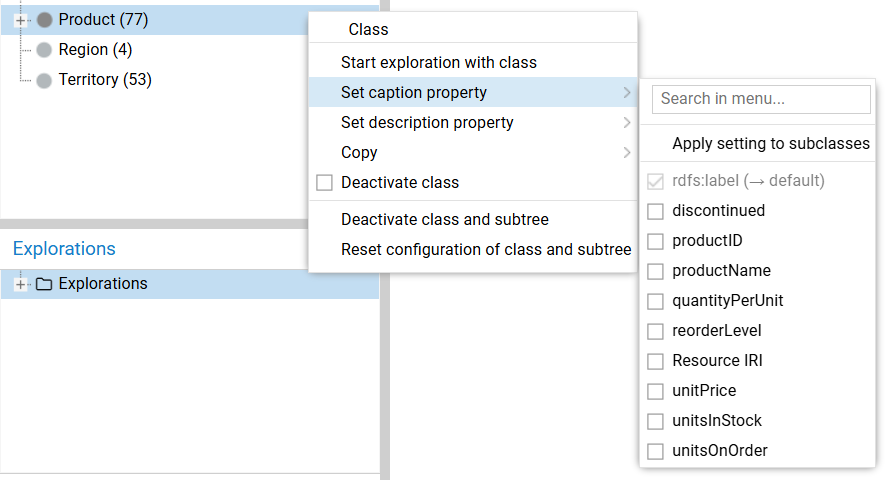
Clicking Apply setting to subclasses copies the setting to all children of the class.
Use Reset configuration... to revert the subtree to system defaults.
Class Visibility (Deactivation) #
Deactivating a class hides it from the expansion menu on the canvas, streamlining the exploration workflow. This is useful for hiding abstract classes (e.g., Entity, Thing) that render the exploration more tedious.
- Action: Right-click a class and select
Deactivate class. - Outcome: The item turns light gray. Expansion steps will skip this class and offer its direct sub-class instead.
Caution
The resources that have only deactivated classes are no longer reachable via an exploration.
Hiding Deactivated Items
You can toggle the visibility of deactivated items in the tree via the application settings.
Class Tree Configuration Reset #
To return the class tree configuration to its initial state, click the circular arrow icon in the pane header. This action restores all deactivated classes and reverts caption settings to defaults.