Resources #
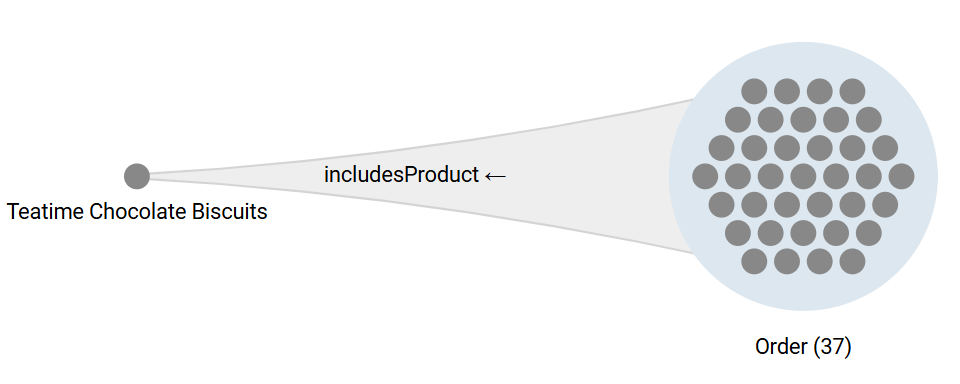
Most investigations require isolating individual resources at some point for closer inspection. This page covers the resource details pane, the highlighting and flagging tools, and single resource traversals.
Resource Details #
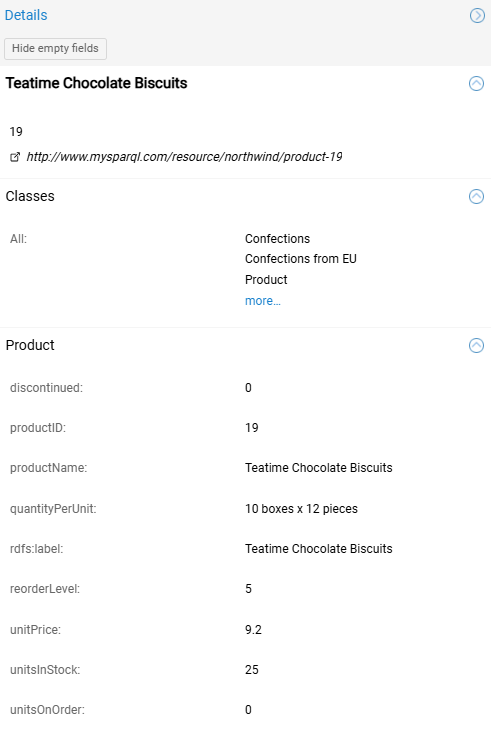
Select a visible resource in a group or its row in the group table to open the Details in the right pane. It displays the resource identity and data properties.
Components #
- Header: Displays the caption and description (configurable in the class tree), as well as the IRI of the resource (configurable in the application settings).
- Classes: List of all classes assigned to the resource.
- Data Properties: List of all data properties organized in sections by their “usage domain” classes (see below).
Search, View, and Interaction Controls #
Use the search bar and configuration menus at the top of the details pane to quickly locate specific information.
- Search scope: Enter text to filter the pane. Use the adjacent dropdown to target
Captions,Values,IRIs, orAll.- Outcome: Matching rows are highlighted, and section headers display the count of matching data properties aligned to the right. If the scope is set to
IRIsorAll, the data properties will additionally display their underlying IRIs.
- Outcome: Matching rows are highlighted, and section headers display the count of matching data properties aligned to the right. If the scope is set to
- View settings (cogwheel):
- Tree view: Organizes data properties into sections by their defining classes (default behavior).
- List view: Flattens the hierarchy, displaying all data properties in a single “All data properties” list.
- Sort by name: Sorts the data properties keys alphabetically.
- Hide empty fields: Toggles the visibility of data properties that have no value for this specific resource.
- Hide IRIs: Toggles the display of the underlying identifiers.
- Copy data: Right-click any row to copy the data property or data property assertion.
Why are there sections?
- SemSpect analyses the actual graph data and infers at which level of the class hierarchy each data properties is effectively used. Besides giving some insights about the real usage domain of data properties, it is used to prevent the resources table of the higher level classes from being “polluted” by all specific data properties of all their sub-classes.
- If a data property is “defined” by multiple classes (e.g.,
rdfs:labelused by bothClothingandSeasonalCollection), SemSpect groups them into a shared section (e.g.,Clothing & SeasonalCollection) to avoid duplication.
Flags and Notes #
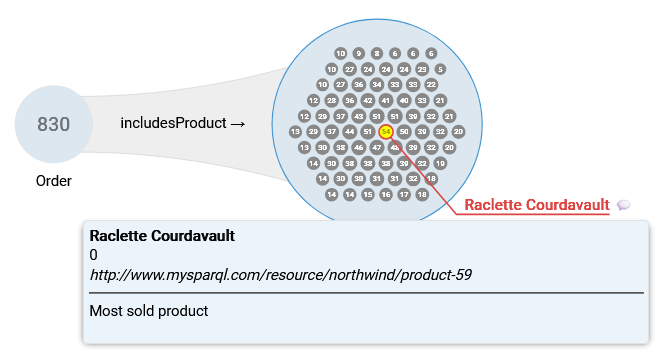
Flags display colored resource captions directly in the exploration for identification and easy tracking.
Standard Flags #
The standard flags are persistent markers used to track the appearance of specific objects in any group over multiple exploration steps.
- Action: Right-click a resource to open its context menu, open the
Flag resourcesubmenu and pick a color. - Outcome: A flag of the selected color displaying the caption is attached to every visible occurrence of the resource in the exploration tree.
- Alternative: Click
Add noteto flag the object and attach a text comment to the flag. The note appears in the tooltip on hover.
About Persistence
- A flag will appear anytime a new instance of the flagged resource is visible in a subsequent exploration step (even in new explorations).
- Flags and notes can be removed using the context-menu of the resource, the group, or the exploration (canvas).
Restricting Groups by Flags #
Once resources are flagged, you can use these visual markers to filter a group down to your items of interest.
- Action: Right-click a group containing standard flags to open its context menu and select
Restrict group to flagged resources. - Outcome: The group is filtered to retain only the flagged resources. (Note: Under the hood, this behaves exactly like a manual resource selection filter applied via the table and can be cleared using
Remove resource selection filters).
Temporary Flags #
Most flagging actions that might affect numerous nodes create temporary flags for easy discarding (e.g., histogram-based flagging or global search).
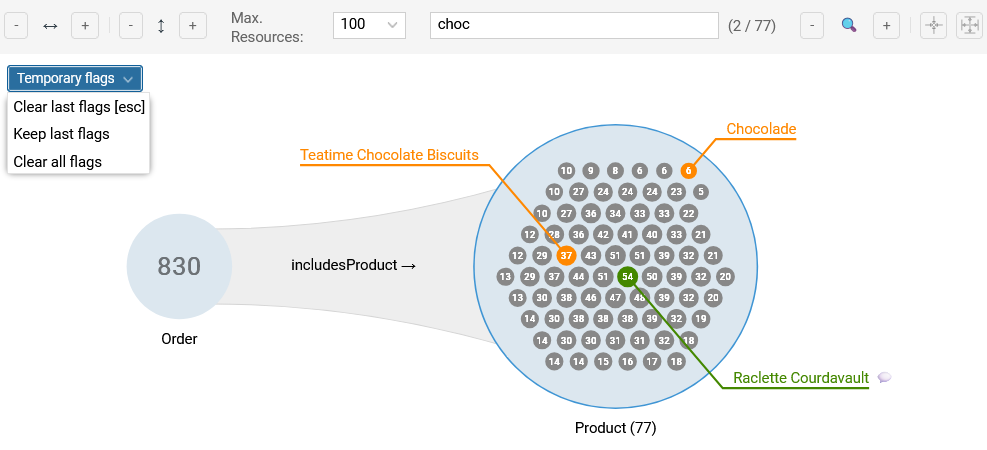
- Standard behavior: Temporary (orange) flags disappear when the exploration tree is modified (e.g., expanding/filtering).
- Locking: To preserve a selection, use the
Temporary flagsmenu button at the top-left of the canvas:Clear last flags:Removes the current unlocked temporary flags.Keep last flags:Locks the current temporary flags to survive exploration tree updates (locked flags are light orange).Clear all flags:Removes all locked and unlocked temporary flags.
Useful Tip
Add a standard flag to a temporarily flagged resource you identified via a global search and clear the temporary flags for a cleaner exploration.
Paths Highlighting and Flagging #
Visualize upstream and downstream connections of a resource in the exploration tree.
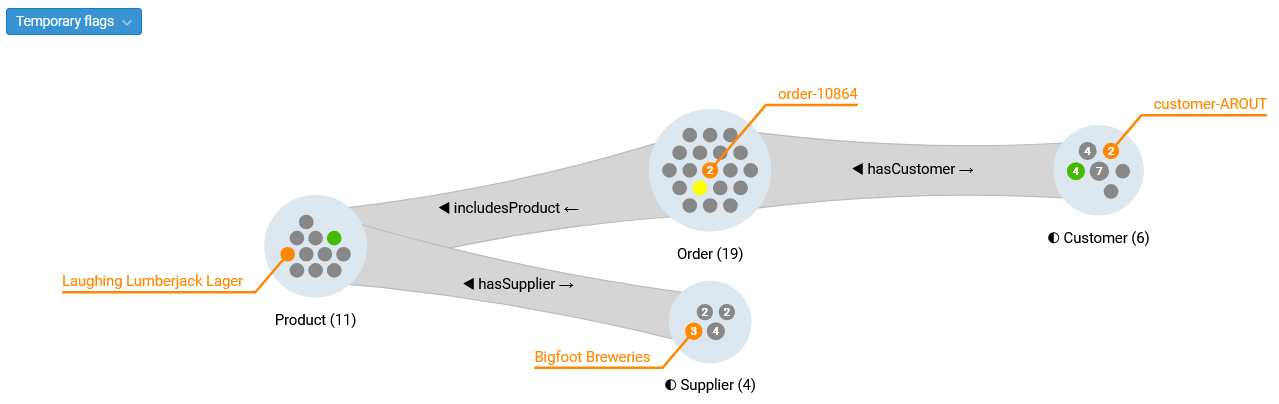
Highlighting:
- Action: point at a visible resource in a group
- Outcome:
- The pointed resource turns yellow (red on click).
- Connected predecessors and successors turn green (blue on click).
Flagging:
- Action: Right-click and select
Flag all connected resources... - Outcome: Temporary flags are added to all connected resources visible.
Line of Sight
Path highlighting is blocked by count-only groups (count > threshold).
Connectivity Visualization (Predecessors) #
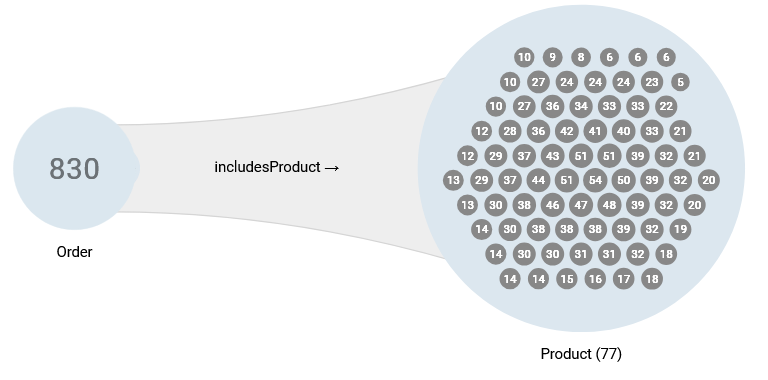
In the groups in instance rendering mode (count <= threshold), SemSpect visually encodes the local “centrality” of resources based on their connectivity to the previous group in the exploration tree (if any).
- Definition: The number of predecessors of a resource is the number of distinct resources from the previous group in the current branch of the exploration tree connected to it.
- Visualization:
- The number of predecessors is displayed in the dot representing the resources, no number meaning there is only a single predecessor.
- The highly connected resources (i.e., with higher predecessor counts) are located at the center of the groups.
Single Resource Exploration #
Analysts can focus on a specific resource within a group to analyze its relationships.
Prerequisite
- These actions require the group containing the object to be in instance rendering mode (resources visible).
- If it is not the case, consider reducing the group size by filtering or directly selecting the resource from the resources table of the group.
- Locate the resource via search or the resource table.
Resource Exploration from a Group #
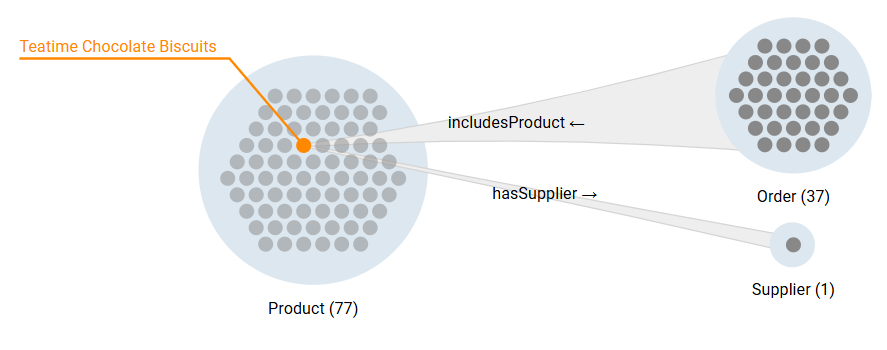
Expand the exploration with connections from a single resource within a larger group.
- Action: Right-click a resource to open its context menu, open
Explore connections of the resource, and select the target class and connecting object property and direction (just like a group expansion). - Outcome: A new connection beam connects the individual resource to a new group to its right.
Independence of the Explorations
The resource exploration does not depend on the exploration that leads to the group. Any change to the main exploration either preserves the resource exploration (if the resource is still visible) or drops it (if the resource is no longer visible).
Simple Resource Exploration #
Start a new exploration tree with any resource found in the current exploration.
- Action: Right-click the resource to open its context menu and select
Start exploration with resource. - Outcome: The canvas clears and places the single resource as starting point of the exploration.